Showing posts with label Warid. Show all posts

Monday, 13 February 2012

Nokia E72 Internet Settings For Warid

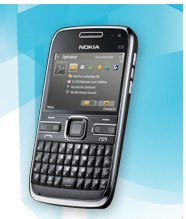
Nokia E72
This is a guide on how to configure access point of Nokia E72 in order to browse the web. I am giving the internet settings of 4 networks at present including Warid, Zong, Telenor, Jazz and Ufone. I will write more networks settings for Nokia E72 after some days.
Nokia E72 is a amazing phone with Wlan, edge and bluetooth. This mobile als contains a built in GPS device.
1. Go to Menu > Control Panel > Settings & Connections > Destination.
2. Then select Options > Manage > New destination and use these settings:

For Warid:
Follow the steps given above and then use these settings:

Connection Name: Warid beta
Data bearer: Gprs
Access Point Name: wap.warid
User name: N/A
Password: N/A
Authentication: Normal
Use access point: Automatically

Then select Options> Advanced Settings and write this:

Network: Automatic
IP Adress: Automatic
Proxy Server Address: 010.004.002.001
Port Number: 8080
Primary/ Secondary Name Server: 0.0.0.0


Sunday, 5 February 2012

Telenor, Warid, Zong, Ufone and Jazz Internet Settings For Iphone3

Here are the "Telenor, Warid, Zong, Ufone and Jazz Internet Settings For Iphone 4"
Iphone 4
Telenor gprs Settings For Iphone 4:

1. Go to settings.
2.  Select General> Network> Cellular Data Network and use the following settings:

Username: Telenor
Password: Telenor
APN: internet

Warid gprs Settings For Iphone 4:


1. Go to settings.
2.  Select General> Network> Cellular Data Network and use the following settings:


Username: 
Password: 
APN: warid


Ufone gprs Settings For Iphone 4:


1. Go to settings.
2.  Select General> Network> Cellular Data Network and use the following settings:

Username: 
Password: 
APN: ufone.pinternet


Mobilink gprs Settings For Iphone 4:


1. Go to settings.
2.  Select General> Network> Cellular Data Network and use the following settings:

Username: 
Password: 
APN: jazzconnect.mobilinkworld.com


Zong gprs Settings For Iphone 4:

1. Go to settings.
2.  Select General> Network> Cellular Data Network and use the following settings:

Username: 
Password: 
APN: zonginternet